Comparing Lovart or AI design agents? Test the production workflow.
Generate with references, then finish headlines, logos, offer text, crops, and export-ready layouts in the Vibart canvas.
From Prompt to Canvas
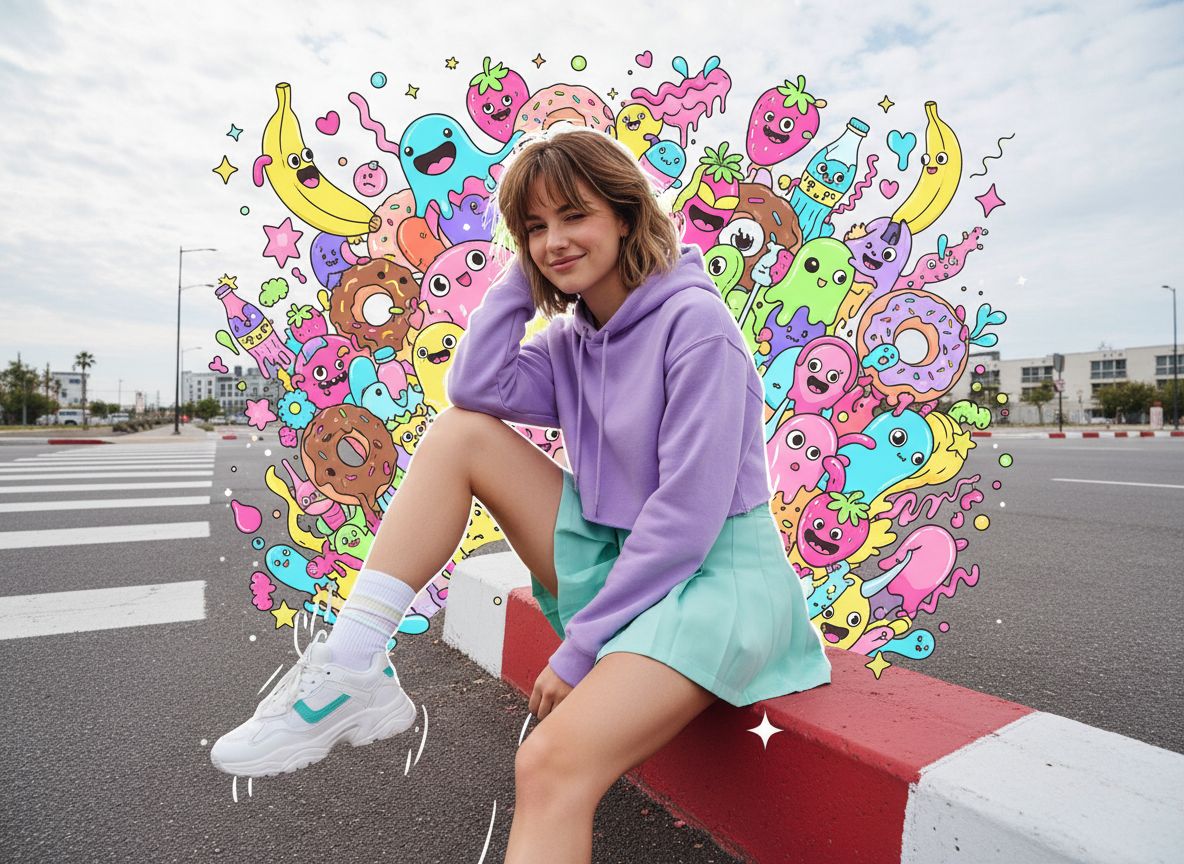
The community work “Winking Girl” began with a detailed prompt that described a young woman in a pastel‑toned urban street scene, surrounded by a maximalist cluster of illustrated sweets‑monster characters. The prompt specifies subject pose, clothing, environment, lighting, camera angle, and an art‑overlay style. In Vibart, each of these fields maps directly to a generation parameter, letting creators move from a textual brief to a base image in a single step.
Generating the Base Image
Using Vibart’s image generation model, the prompt produces a high‑resolution photograph‑style render that respects the described lighting (bright diffused afternoon), lens effect (wide with mild depth warp), and color palette (lavender hoodie, mint skirt, pastel sky). The result serves as the reference layer for all subsequent edits, ensuring brand‑consistent lighting and perspective across variations.
Reference‑Guided Editing for Brand Consistency
Ecommerce sellers often need the same model in multiple outfits or backgrounds. Vibart’s reference editing lets you lock the subject’s pose and facial expression while swapping clothing, swapping the street corner for a studio backdrop, or adjusting the color scheme to match a seasonal campaign. Because the reference layer preserves the original geometry, the edited outputs stay visually coherent — critical for product‑detail pages and ad sets.
Building a Multi‑Layer Canvas
The “Winking Girl” piece showcases a dense maximalist overlay of illustrated monsters (banana ghosts, donut creatures, strawberry heads, etc.). In Vibart’s canvas workspace each illustrated element lives on its own editable layer. Designers can:
- Re‑position, scale, or rotate individual monsters without affecting the base photo.
- Apply layer‑level effects such as blur, blend mode, or color‑grade to match the overall mood.
- Add typography layers with full font, kerning, and line‑height control for headlines or promotional copy.
This layer‑based approach mirrors professional design tools while staying inside the AI workspace, eliminating the round‑trip to external editors.
Crop Variants for Multi‑Channel Delivery
A single canvas can output multiple aspect ratios — 1:1 for Instagram, 4:5 for Facebook feed, 16:9 for YouTube thumbnails, and custom dimensions for programmatic ad slots. Vibart’s crop‑variant panel lets you define safe zones so the winking subject and key monsters remain visible in every format. The same layered file produces all variants instantly, saving hours of manual resizing.
Production‑Ready Exports
Final assets export as PNG, WebP, or layered PSD with embedded adjustment layers. Metadata includes the original prompt, reference image hash, and layer hierarchy, enabling traceability for compliance audits or future re‑edits. For video‑centric campaigns, the canvas can be handed off to Vibart’s video generation module, turning the static scene into a short looping clip with subtle motion (e.g., blinking, floating monsters).
Lessons for Your Own Workflow
1. Write structured prompts — break subject, environment, lighting, and overlay into separate JSON‑like blocks; Vibart reads each block as a controllable parameter. 2. Lock a reference layer early to guarantee consistency across outfit, background, or color‑scheme changes. 3. Use canvas layers for every decorative element; this keeps the file editable for last‑minute client tweaks. 4. Define crop variants before exporting to avoid re‑work when new placement specs arrive. 5. Export with full metadata so the asset remains a living component of your design system.
By following the “Winking Girl” pipeline — prompt → reference generation → layered canvas → multi‑crop export — teams can move from concept to channel‑ready creative in minutes rather than hours, whether they are building product listings, social ads, or brand‑story video loops.
Sources and further reading
The workflow and platform rules in this article are grounded in these primary references. Confirm current rules for your market and channel before publishing.
- Vibart community work: Winking GirlVibart community · 2026-01-09
Next step: make one asset with the same workflow
Do not stop at the comparison page. Upload a reference, generate a direction, then keep copy and brand elements editable on the canvas.