Comparing Lovart or AI design agents? Test the production workflow.
Generate with references, then finish headlines, logos, offer text, crops, and export-ready layouts in the Vibart canvas.
Turning a Community Concept into a Production-Ready Workflow with Vibart
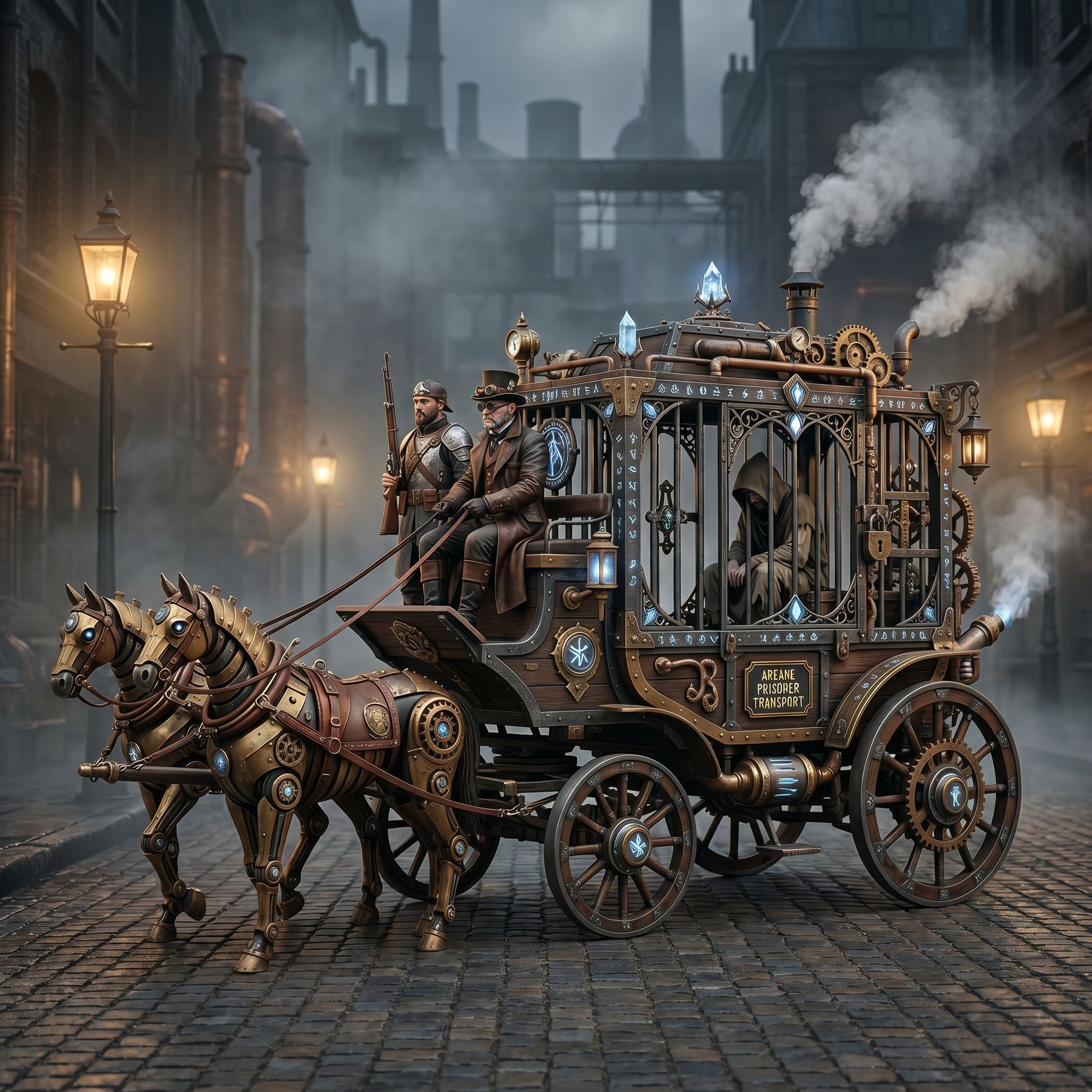
The Vibart community spotlight “Steampunk Horse Car” (posted 2026-04-27) shows a single image that currently has zero views and zero likes, but it offers a clear example of how a simple visual idea can be developed into a finished asset. The original post asks the model to “把这个风格转换成 unreal engine 渲染的风格”, which translates to converting the existing style into an Unreal Engine‑rendered look. This request sets the stage for a workflow that blends prompt direction, reference editing, and canvas‑based refinement.
Understanding the Visual Direction
The starting image already contains a steampunk‑styled horse and carriage, complete with brass fittings, leather straps, and atmospheric lighting. By requesting an Unreal Engine render, the creator signals a desire for higher fidelity, physically based shading, and a more cinematic depth of field. Recognizing this shift helps creators decide which aspects of the original to preserve (the silhouette, the steampunk accessories) and which to let the model reinterpret (material realism, lighting, post‑process effects). When working in Vibart, you can lock the composition using a reference image while allowing the model to adjust shading and texture to match the target engine’s look.
Crafting the Prompt for Style Transfer
A precise prompt bridges the gap between the source visual and the desired outcome. In this case, the Chinese phrase “把这个风格转换成 unreal engine 渲染的风格” works as a concise instruction. Creators can expand it with additional qualifiers such as “high detail, global illumination, filmic tone mapping, 8k resolution” to steer the model toward specific render qualities. Vibart’s prompt interface lets you iterate quickly: adjust wording, add weight to certain terms, or include negative prompts to suppress unwanted artifacts. Keeping the prompt focused on the style shift—rather than describing every element—helps the model retain the original composition while applying the new rendering style.
Using Reference-Guided Editing on the Canvas
Once the initial generation returns, Vibart’s reference‑guided editing feature lets you overlay the original steampunk image as a guide. By setting the reference strength, you tell the AI to preserve the overall layout and key details while freely adapting materials and lighting to match the Unreal Engine aesthetic. This step is crucial for maintaining brand consistency or design intent when exploring style transfers. Designers can mask specific regions (e.g., the horse’s harness) to protect intricate steampunk patterns while letting the background and lighting shift toward a more realistic, engine‑based look.
Iterating with Layer-Based Adjustments
Vibart’s canvas operates with editable layers, similar to traditional design software. After the reference‑guided pass, creators can add new layers for color grading, add speculative wear and tear, or insert additional props that fit the steampunk theme. Each layer can be toggled, blended, or adjusted independently, enabling non‑destructive experimentation. For example, you might add a layer that simulates volumetric fog to enhance the cinematic feel, then adjust its opacity without affecting the underlying horse and carriage. This layer‑based workflow mirrors the iterative process used in professional concept art pipelines, allowing rapid feedback loops.
Exporting for Ecommerce and Marketing Use
When the visual meets the desired quality, Vibart offers production‑ready exports tailored to common downstream needs. You can generate multiple crop variants (square, portrait, landscape) for social media ads, export a transparent PNG for overlay on product pages, or render a high‑resolution TIFF for print catalogs. The platform also supports batch export of different color profiles (sRGB, Adobe RGB) to ensure consistency across ecommerce platforms and marketing channels. Because the export preserves layer information, teams can revisit the file later to make minor tweaks without starting from scratch.
Lessons for Creators Exploring AI Design Canvases
The Steampunk Horse Car example highlights several takeaways for anyone using an AI creative workspace:
1. Start with a clear visual reference – a strong base image reduces ambiguity when requesting style changes. 2. Translate artistic goals into concise prompts – focus on the transformation (e.g., “Unreal Engine render”) and supplement with technical qualifiers as needed. 3. Leverage reference‑guided editing – lock composition while allowing the model to reinterpret materials and lighting. 4. Use layers for non‑destructive iteration – separate concerns like color grading, added details, or effects into independent layers. 5. Plan export variants early – consider the aspect ratios, file formats, and color spaces required for your final use cases to avoid rework.
By following these steps, creators can move from a community‑shared concept to a polished asset suitable for games, advertising, or product showcases, all within a unified AI‑driven canvas.
Sources and further reading
The workflow and platform rules in this article are grounded in these primary references. Confirm current rules for your market and channel before publishing.
- Vibart community work: Steampunk Horse CarVibart community · 2026-04-27
Next step: make one asset with the same workflow
Do not stop at the comparison page. Upload a reference, generate a direction, then keep copy and brand elements editable on the canvas.