Comparing Lovart or AI design agents? Test the production workflow.
Generate with references, then finish headlines, logos, offer text, crops, and export-ready layouts in the Vibart canvas.
Introduction
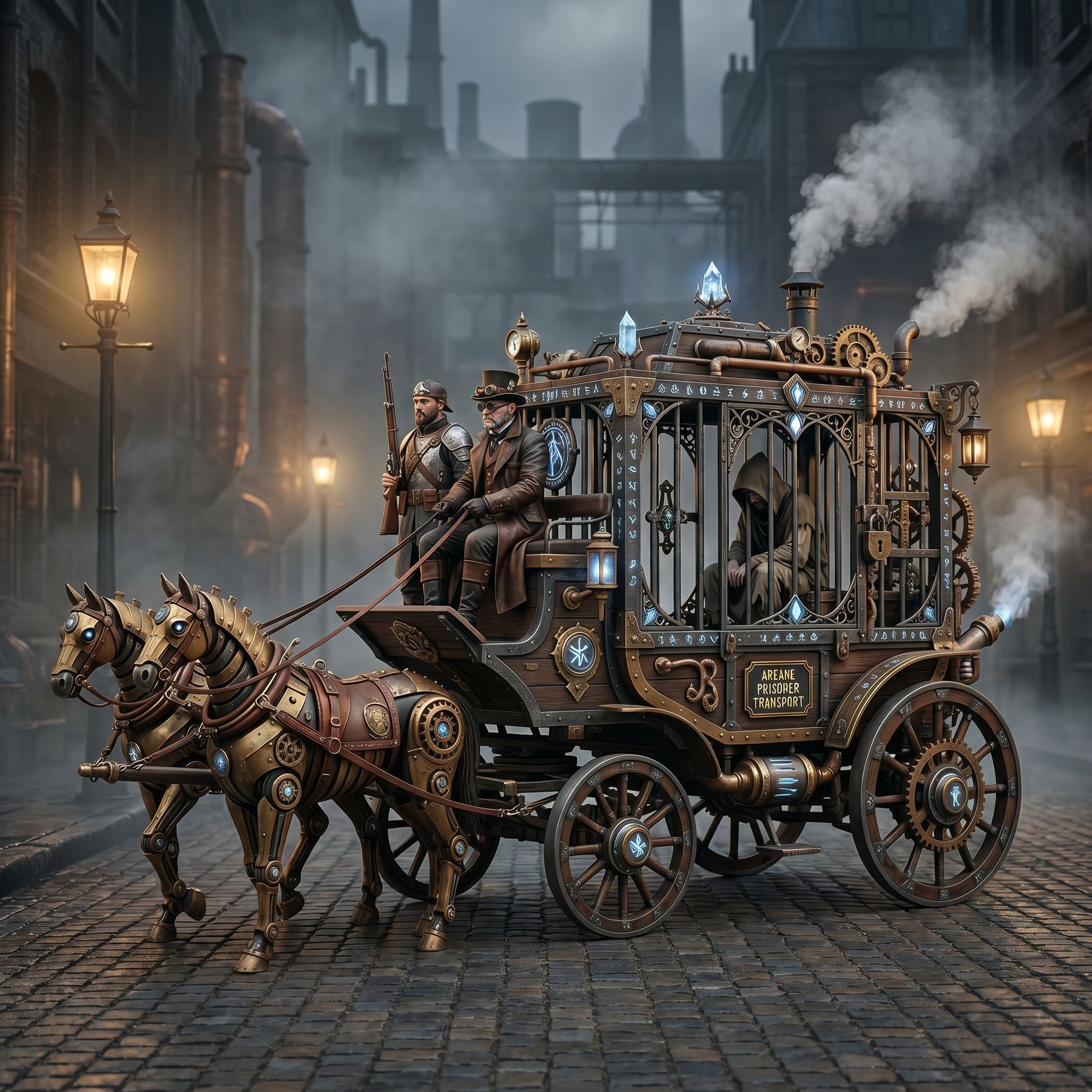
The Vibart community frequently shares works that showcase how a simple idea can be transformed into a detailed visual using the platform’s AI tools. One recent entry, titled Steampunk Horse Car (posted 2026‑04‑27, views 0, likes 0), illustrates a game‑design focused request: convert an existing style into an Unreal Engine‑rendered look. By breaking down this workflow, designers, ecommerce sellers, marketers, and creators can see how to leverage Vibart’s image and video generation, reference‑guided editing, editable canvas layers, and export options to move from concept to final asset.
Understanding the Prompt
The original prompt, written in Chinese, reads: "把这个风格转换成 unreal engine 渲染的风格" – "Convert this style into an Unreal Engine rendering style." This signals two key objectives for the creator: 1. Style translation – taking the visual characteristics of the source (likely a steampunk illustration) and re‑interpreting them through the lighting, material, and post‑process conventions of Unreal Engine. 2. Reference fidelity – preserving the core elements of the horse‑car composition while adapting them to a real‑time render aesthetic.
When starting a project in Vibart, you can paste this prompt into the AI generation bar, attach the source image as a reference, and let the model propose an initial interpretation. The community post shows the first output as a baseline that still retains the original line work but begins to adopt more physically‑based rendering cues.
Reference‑Guided Editing on an Editable Canvas
Vibart’s canvas workflow lets you treat the AI‑generated result as a mutable layer. After the initial generation, you can: - Lock the reference layer – keep the original steampunk sketch visible for comparison. - Add new layers – paint over areas where you want to enhance metal roughness, add emissive glow, or adjust perspective to match a game camera. - Use reference‑guided editing tools – specify regions (e.g., the horse’s harness) and instruct the AI to apply Unreal‑style material properties while preserving the underlying shape.
This iterative loop mirrors how concept artists work in traditional pipelines: generate a base, critique against a reference, refine locally, and repeat. Because the canvas retains vector and raster layers, you can later adjust typography, add UI overlays, or create crop variants for different aspect ratios without losing the underlying AI‑generated detail.
Iterating with AI Generation for Consistency
Once the base look is approved, you can run additional AI passes to generate complementary assets: - Variants – change the time of day, weather conditions, or camera angle while keeping the same reference‑guided constraints. - Video loops – use the same canvas to export a short turntable or idle animation, leveraging Vibart’s video generation module to produce seamless loops suitable for game UI or ad teasers. - Brand‑consistent edits – if the asset will appear in an ecommerce storefront, apply color‑grading layers that match your brand palette, all while keeping the reference‑guided steampunk details intact.
Each iteration benefits from the canvas’s layer history, allowing you to revert to earlier states if a new direction doesn’t meet the Unreal Engine aesthetic goal.
Exporting for Ecommerce, Marketing, and Game Production
When the design reaches the desired fidelity, Vibart offers several export pathways: - Image exports – PNG, JPEG, or WebP with optional transparency, ideal for product listings, social ads, or storefront banners. - Video exports – MP4 or WebM with configurable frame rates, suitable for in‑game cutscenes, promotional reels, or dynamic ad creatives. - Production‑ready packs – layered PSD‑style files (if needed) that preserve the editable canvas structure for further tweaks in external tools like Photoshop or After Effects.
These outputs align with the positioning of Vibart as a tool for ecommerce/marketing assets, typography control, crop variants, and final‑ready deliverables.
Conclusion
The Steampunk Horse Car community post demonstrates a concrete, repeatable workflow: start with a clear style‑translation prompt, use reference‑guided editing on an editable canvas, iterate with AI‑generated variants, and finish with platform‑appropriate exports. By following these steps, creators can efficiently move from a rough concept to a polished asset that meets the visual standards of Unreal Engine‑style rendering while retaining the flexibility needed for ecommerce, marketing, or game design pipelines. This approach highlights how Vibart’s AI creative workspace serves as a practical alternative when evaluating tools for AI‑driven design workflows.
Keywords Vibart workflow, reference guided editing, AI image generation, AI video generation, Unreal Engine style, ecommerce product assets, game design canvas, creative workspace comparison
Topics AI creative workflow, reference editing, canvas layers, export options, design iteration
hero_image_alt A steampunk‑styled horse‑car illustration being transformed into an Unreal Engine‑rendered version on a Vibart canvas, showing layered edits and AI‑generated variations.
cta_label Try Vibart’s AI Creative Workspace
cta_path /
Sources and further reading
The workflow and platform rules in this article are grounded in these primary references. Confirm current rules for your market and channel before publishing.
- Vibart community work: Steampunk Horse CarVibart community · 2026-04-27
Next step: make one asset with the same workflow
Do not stop at the comparison page. Upload a reference, generate a direction, then keep copy and brand elements editable on the canvas.