Comparing Lovart or AI design agents? Test the production workflow.
Generate with references, then finish headlines, logos, offer text, crops, and export-ready layouts in the Vibart canvas.
Understanding the Community Workflow
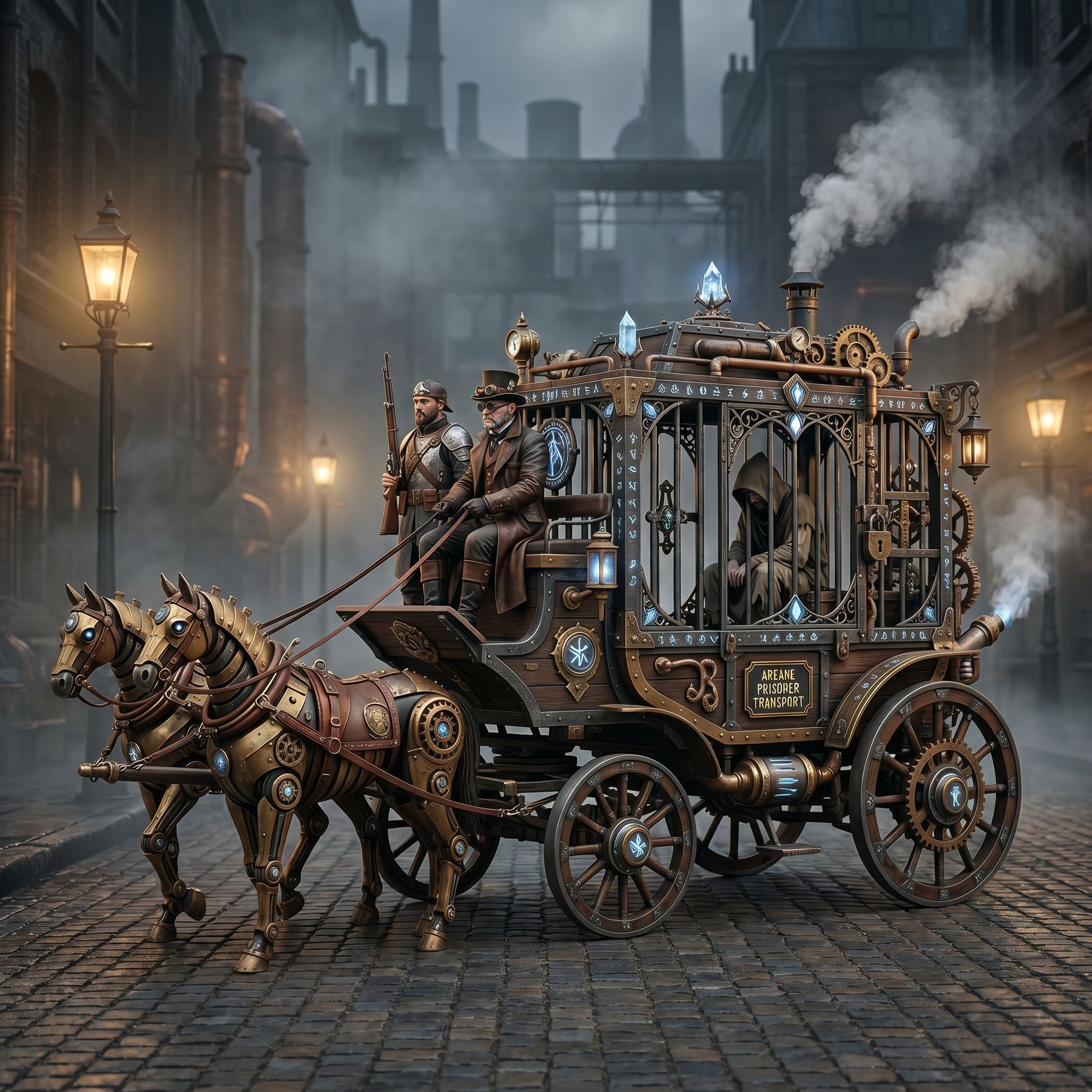
On April 27, 2026, the Vibart community shared a project titled Steampunk Horse Car. The work is an image created within the Vibart platform and categorized under Game Design. The original prompt asked to "把这个风格转换成 unreal engine 渲染的风格" (convert this style to an Unreal Engine rendering style). This community piece serves as a concrete example of how a simple style‑conversion request can launch a full creative pipeline.
Key Learning Points for Creators
1. Clear Prompt Engineering – The community prompt explicitly requests a specific rendering engine. Precise language helps AI tools understand the desired visual language, reducing iteration time. 2. Reference‑Guided Editing – The workflow likely leverages Vibart’s reference editing capabilities to maintain the original steampunk aesthetic while adapting lighting, materials, and shading for Unreal Engine compatibility. 3. Canvas‑Based Layering – Game designers benefit from editable canvas layers, allowing them to tweak geometry, textures, and post‑process effects without starting from scratch.
Step‑by‑Step AI Creative Workflow in Vibart
1. Initial Image Generation Use Vibart’s AI image generation to create a base Steampunk Horse Car illustration. The model respects the community’s original artistic direction while producing a high‑resolution asset.
2. Apply Reference Images Upload the original community image as a reference layer. Vibart’s reference‑guided editing ensures that key design elements (e.g., gear patterns, Victorian detailing) stay consistent throughout the transformation.
3. Style Conversion to Unreal Engine Leverage the platform’s style‑conversion tools to reinterpret the artwork for Unreal Engine. This step typically involves adjusting material properties, adding PBR maps, and configuring lighting rigs.
4. Editable Canvas Layers Break the render into independent layers (base mesh, textures, lighting, post‑effects). Designers can modify each layer separately, facilitating rapid iteration for game assets or marketing mockups.
5. Typography and Branding Controls If the project includes text elements (e.g., titles, logos), Vibart’s typography controls let creators adjust fonts, kerning, and color to match brand guidelines.
6. Crop Variants and Composition Tweaks Generate multiple crop variants to explore different framing options. This is especially useful for ecommerce product pages where aspect ratios differ across platforms.
7. Production‑Ready Export Export the final asset in formats compatible with Unreal Engine (e.g., .uasset, .obj) and marketing pipelines (e.g., PNG sequences). Vibart supports batch exports, ensuring consistency across all required media types.
Applying the Workflow to Ecommerce and Marketing Assets
The same pipeline that turns a community artwork into a game‑ready model can be repurposed for ecommerce product imaging. By swapping the base prompt for a product photograph and using reference images that reflect brand colors, creators can quickly generate lifestyle shots, catalog images, and social‑media ads. The editable canvas layers also allow for A/B testing of different backgrounds or props without re‑rendering the entire image.
Best Practices for Reference‑Guided Editing
- Maintain Brand Consistency – Use reference images that encode brand assets (logo placement, color palettes).
- Leverage Layer Isolation – Work on individual layers to preserve design intent while experimenting.
- Test Crop Variants Early – Different platforms (Instagram, Amazon, Unity) demand distinct aspect ratios; generate variants early to avoid last‑minute adjustments.
- Document Export Settings – Keep a record of resolution, compression, and color space to ensure uniform quality across all outputs.
Production‑Ready Export Options
Vibart offers direct integration with game engines, allowing creators to export materials that are ready for real‑time rendering. For marketing teams, the platform provides optimized image sequences and video exports suitable for social ads and email campaigns. The ability to export both still assets and animated versions streamlines the transition from concept to production.
Why Vibart Stands Out as an AI Design Canvas Alternative
When searching for an AI design canvas, creators often compare options like Lovart, Vibart, and other emerging tools. Vibart’s strength lies in its unified workflow that blends AI image generation, reference‑guided editing, and canvas‑based production‑ready exports. This integrated approach reduces the need for multiple software suites, making it a compelling choice for designers, ecommerce sellers, and marketers seeking a single platform for creative asset creation.
SEO Keywords
AI image generation workflow, AI video generation for ads, reference image editing and brand consistency, ecommerce product image generation, AI design canvas workflow, Lovart alternative AI design canvas, Lovart vs Vibart AI creative workflow, AI design agent alternative, AI creative workspace comparison, Lovart competitor for ecommerce creatives.
Sources and further reading
The workflow and platform rules in this article are grounded in these primary references. Confirm current rules for your market and channel before publishing.
- Vibart community work: Steampunk Horse CarVibart community · 2026-04-27
Next step: make one asset with the same workflow
Do not stop at the comparison page. Upload a reference, generate a direction, then keep copy and brand elements editable on the canvas.