Comparing Lovart or AI design agents? Test the production workflow.
Generate with references, then finish headlines, logos, offer text, crops, and export-ready layouts in the Vibart canvas.
Understanding the Community Workflow
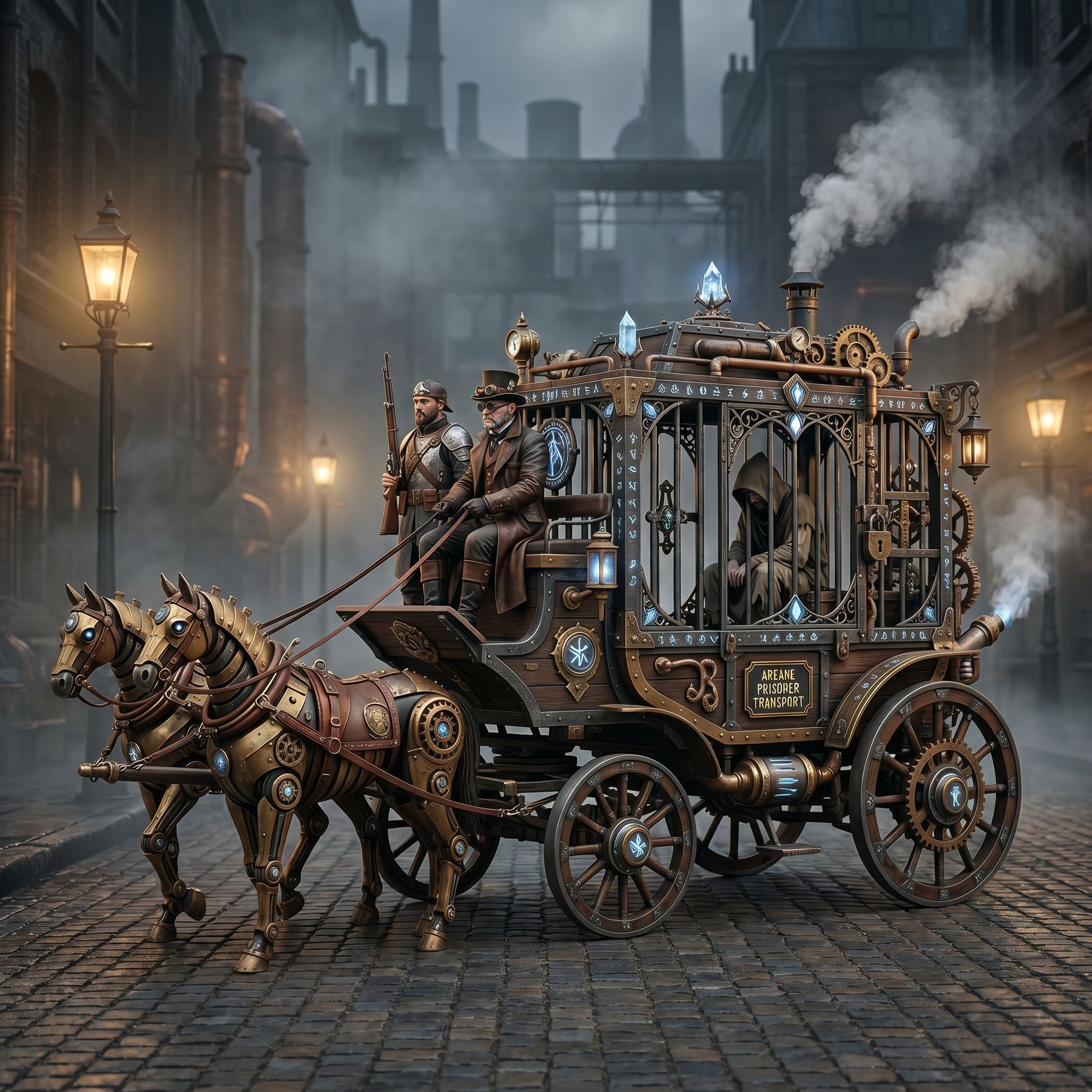
The community submission titled Steampunk Horse Car showcases a concept created by a Vibart user who wanted to re‑imagine the scene in an Unreal Engine rendering style. The original prompt is a concise Chinese instruction: "把这个风格转换成 unreal engine 渲染的风格" (Convert this style to Unreal Engine rendering style). While the image currently has zero views and likes, the workflow it represents is valuable for any creator looking to blend AI generation with manual refinement.
Step 1: Capture the Visual Direction
Before any generation occurs, identify the core visual cues you want to preserve or transform. In this case, the community workflow emphasizes a steampunk aesthetic—ornate metal textures, vintage lighting, and dynamic composition. Jot down key elements such as the horse‑car silhouette, gear‑filled backgrounds, and color palette. This list becomes your reference point when feeding prompts into Vibart.
Step 2: Generate the Base Image with Vibart
Vibart’s AI image generation engine can produce high‑resolution concept art based on textual prompts. Using the captured visual direction, craft a prompt that includes style descriptors (e.g., "steampunk horse car, detailed metal textures, dramatic lighting") and any specific references you have. Upload any reference images you already possess—Vibart supports reference‑guided generation, which helps the model stay true to your target aesthetic while exploring new variations.
Step 3: Apply Reference‑Guided Editing
Once the initial image is generated, open it in Vibart’s reference‑guided editing module. This tool lets you overlay a style reference (for example, a high‑poly Unreal Engine screenshot) and automatically adjust color grading, shading, and material properties. The goal is to align the AI‑produced image with the realistic rendering pipeline you intend to use downstream, ensuring that the final asset feels native to the target engine.
Step 4: Build an Editable Canvas in Vibart
Vibart’s canvas workspace provides layered, non‑destructive editing. After the reference edit, you can add or modify individual layers—adjusting the horse’s harness, refining the carriage’s rivets, or tweaking atmospheric particles. Each layer remains independent, which is crucial for iterative game‑design pipelines where artists may need to tweak specific elements without disturbing the whole composition.
Step 5: Refine Layers for Game‑Ready Export
Game engines like Unreal require assets in specific formats and resolution settings. Vibart’s export options let you down‑sample to the desired resolution, apply compression settings, and generate multiple crop variants for different aspect ratios (e.g., portrait for social ads, landscape for storefronts). The canvas finishing process also includes adding metadata tags, which helps asset management pipelines quickly locate and reuse the image across projects.
Step 6: Convert to Unreal Engine Style
The final step is to ensure the exported image matches Unreal Engine’s rendering characteristics. Use Vibart’s built‑in style conversion presets that emulate Unreal’s material system—adjusting for physically based shading, ambient occlusion, and specular highlights. The result is a texture set that can be imported directly into Unreal, saving time compared to manual re‑baking.
Extending the Workflow to Ecommerce and Marketing Assets
The same workflow can be repurposed for ecommerce product visualization. By swapping the horse‑car concept for a product placeholder, creators can generate multiple angle views, apply brand‑consistent color palettes, and produce crop variants optimized for platforms like Instagram, Amazon listings, or Google Shopping ads. Vibart’s typography control and canvas‑based production design also enable quick assembly of marketing banners that maintain visual cohesion across channels.
Why Choose Vibart Over Other AI Design Tools
When searching for an AI design canvas or creative workspace, many creators compare options like Lovart. A neutral buyer‑education perspective highlights that Vibart combines AI image and video generation with robust reference editing and an editable canvas—all within a single environment. This integrated approach reduces the need to switch between multiple tools, streamlines the workflow from concept to export, and supports both game‑design pipelines and ecommerce asset creation.
Explore Vibart Features
Sources and further reading
The workflow and platform rules in this article are grounded in these primary references. Confirm current rules for your market and channel before publishing.
- Vibart community work: Steampunk Horse CarVibart community · 2026-04-27
Next step: make one asset with the same workflow
Do not stop at the comparison page. Upload a reference, generate a direction, then keep copy and brand elements editable on the canvas.